
How to download your meter data from eloverblik.dk
It takes a few minutes. You need MitID, or MitID Erhverv if the meter belongs to a business. You can then read the file in our free tool without it being sent anywhere.
-
Step 1 Go to eloverblik.dk and log in
Open eloverblik.dk and click Log på (log in).
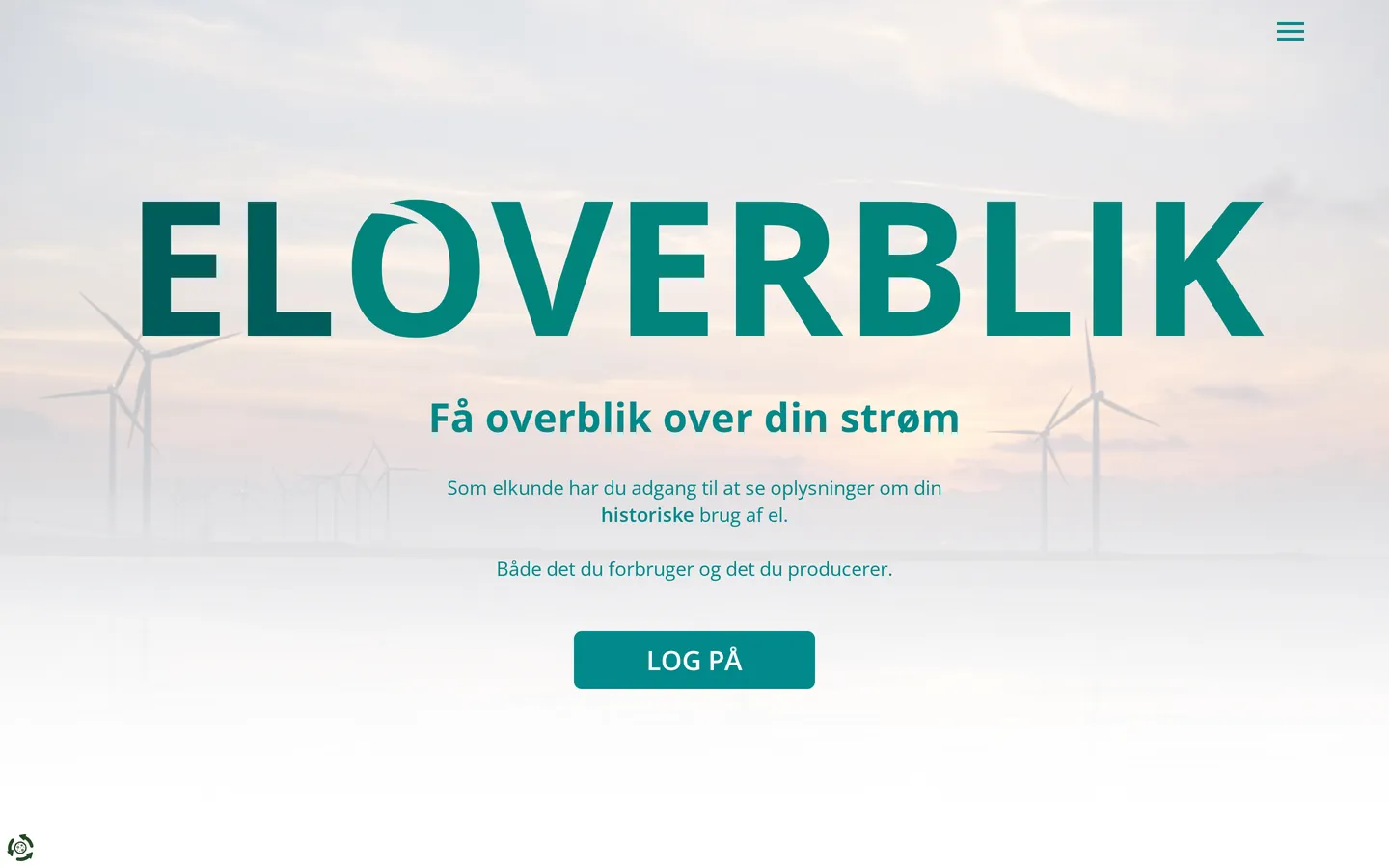
eloverblik.dk, front page. Screenshot 7 October 2026. Choose Log på som privat (as a private person) and log in with MitID.
Choose Log på som erhverv (as a business) and log in with MitID Erhverv. You need access to the company's meters; otherwise whoever administers MitID Erhverv can grant you the right or download the files.
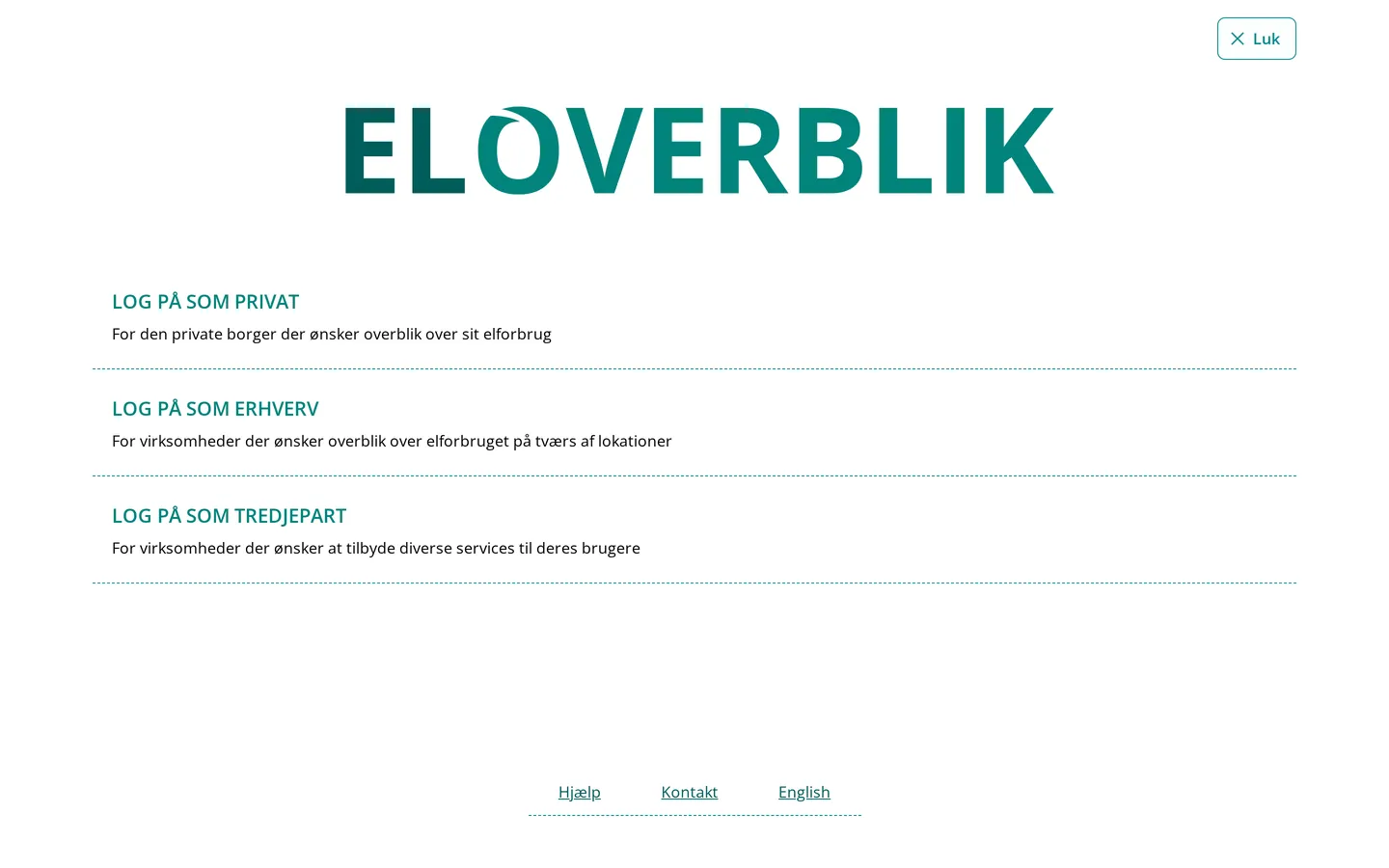
Choose private. Screenshot 7 October 2026. Choose business. Screenshot 7 October 2026. -
Step 2 Find your meters
You land on the page Elmålere (meters), which lists your meters with their address.
The first time, ElOverblik asks permission to find your meters from your CPR number. Choose Tillad (allow).
With MitID Erhverv you see every meter registered to the company's CVR number. If you see “Adgang nægtet” (access denied), the company's administrator must grant you access under Rettighedsstyring.
Screenshot to come: the “Elmålere” page (needs a login).
-
Step 3 Choose the meters to download
Click Handlinger (actions) and choose Download. Tick the meter, or all your meters at the address, and click Download.
If the company has many meters, you can use Vælg alle (select all).
Screenshot to come: the “Handlinger” menu and the meter selection (needs a login).
-
Step 4 Choose data, period and resolution
Choose Forbrug/produktion (consumption/production). Set Fra dato (from) to the same date last year (two years back lets us compare years) and Til dato (to) to today.
Important: change Tidsopløsning (resolution) from År (year) to Time (hour), or Kvarter (quarter hour) if your meter has quarter-hour values. Choose CSV or Excel under Format, and click Download.
With many meters and quarter-hour values, the Excel file can be too large. Choose CSV instead.
Please switch eloverblik.dk to Dansk before you download: files made with the English interface have not been tested with this tool yet.
Screenshot to come: the download dialog with “Tidsopløsning” set to “Time” (needs a login).
-
Step 5 Fetch the file when it is ready
ElOverblik builds the file and lists it on the page Downloads. When it says Færdig (done), click Download. The file is usually called meterdata.csv or meterdata.xlsx and lands in your downloads folder; on a phone, in the Files app.
Screenshot to come: the “Downloads” page with status “Færdig” (needs a login).
-
Step 6 Drop the file into the tool
Or use the Choose files button. If you downloaded several files, bring them all. We add the meters up and also show each meter on its own.
ElOverblik shows up to five years of data plus the current year, only for the period you have been the customer on the meter. New values can be up to seven days late.